Uniforms Module
The Uniforms module tracks every uniform item the organisation owns, its type, size, and condition, and who it's currently issued to.
Browsing & Searching Uniforms
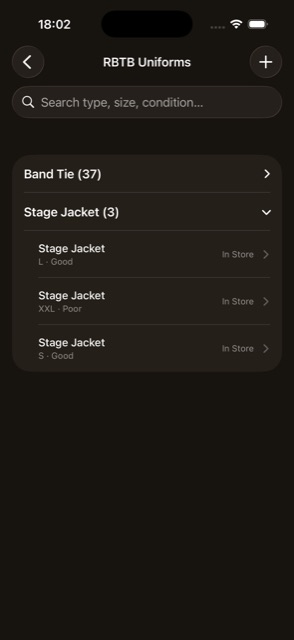
- Search — by type, size, or condition.
- Grouped by uniform type, alphabetically, collapsible.
- + button — add a new uniform. Full access only
- Swipe to delete. Full access only
- Tap a row — Read-only members see the current holder's profile directly; editors go into the full uniform form.
Adding, Editing & Duplicating a Uniform
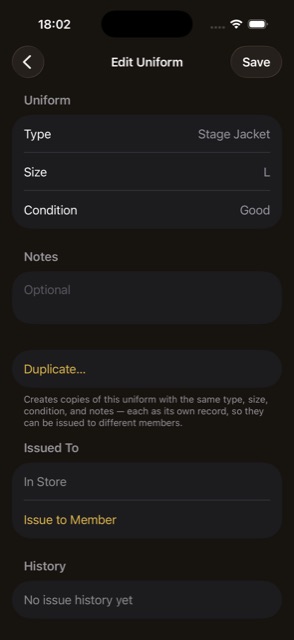
- Type, Size, Condition — pickers with inline “add new.”
- Assign To (new uniforms only) — optionally assign the uniform straight to a member as part of creating it, instead of using Issue to Member afterwards.
- Notes.
- Duplicate… — for an existing uniform, create between 1 and 999 copies with the same type/size/condition/notes, each its own independently-issuable item. If the batch fails partway, you're told how many succeeded. Full access only
Issuing & Returning Uniforms
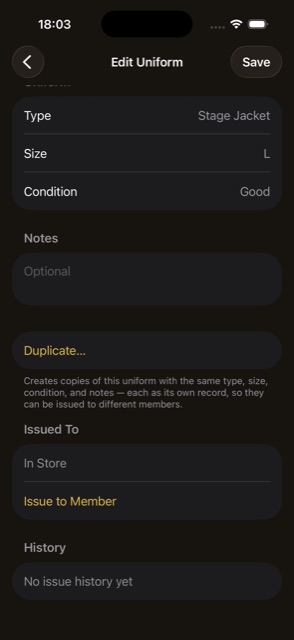
- Current status — shows either the current holder and the date they were issued, with a Return button, or “In Store” with an “Issue to Member” button. Full access only
- Issue to Member — pick a Member, add optional Notes, then Issue. Full access only
- Full issue/return history — a list on the uniform's own form; swipe to delete a history entry, with confirmation. Full access only
Importing Uniforms from a Spreadsheet
Reached from Settings → Import → Import Uniforms.
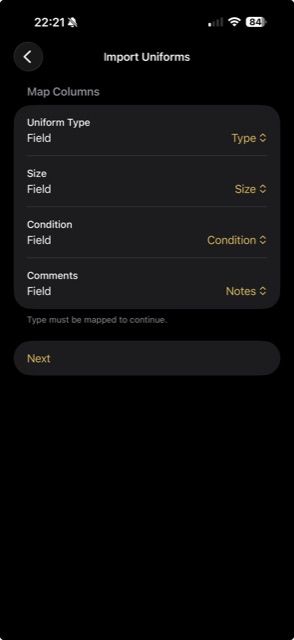
- Pick a .xlsx file, then map columns to Type, Size, and Condition.
- Preview, confirm, progress bar, and result summary, same as the other import flows.