Library Module
The Library module tracks every piece of sheet music the organisation owns: where it physically lives, which scores/parts have been scanned in as PDFs, which parts are missing, who's currently issued what, and who's borrowed what. It's a tab bar of six tabs — Library, Missing Parts, Issued, Requests, Loans, and Lists — plus an Import flow reached from Settings.
Browsing & Searching the Library
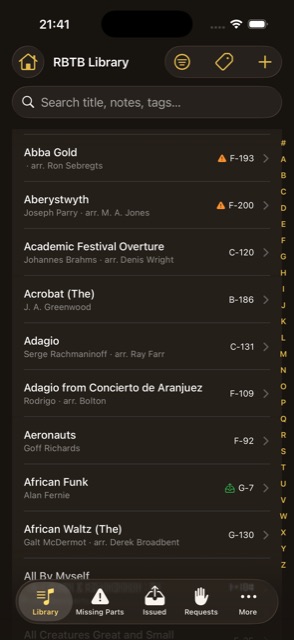
- A–Z index strip — jump straight to a letter of the alphabet; hidden while you're actively searching.
- Search bar — matches on title by default; a Search Filters sheet lets you toggle which additional fields are included (notes, tags, etc.), with Select All / Deselect All.
- Filter sheet — narrow the list by Genres, Instrumentation Features, Tags (each with an Any/All — OR/AND — toggle), Composers, Arrangers, or Publishers (single-value). Clear Filters resets everything.
- Row icons — a warning triangle for missing parts, a tray icon for pieces currently issued, a hand icon for a pending request, and a blue document icon for a piece with digital score/parts attached.
- Cabinet location shown on each row — Read-only members don't see physical storage location. Full access only
- + button (top right) — add a brand-new piece to the catalogue. Full access only
Piece Detail
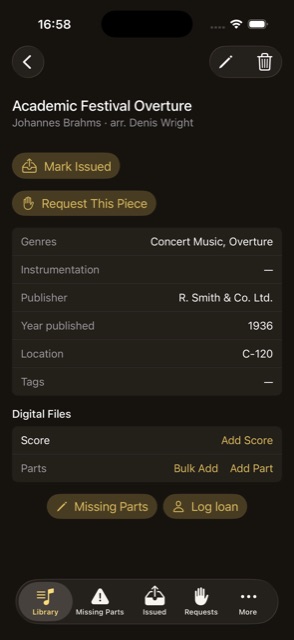
- Details shown — genres, instrumentation features, publisher, year published, tags, notes, and badges for issued/missing-parts count/on-loan status.
- Cabinet location Full access only
- Pencil icon (top right) — edit the piece's details. Full access only
- Mark Issued / Return to Cabinet — one tap to flag whether the piece is currently out with the band or back in storage; marking it Issued opens a picker to choose which Pad(s)/Setlist(s) it's going out to (optional — can be left as “no pad/setlist assigned”). Returning it clears any pads it was assigned to. Full access only
- Pad/setlist assignment (while issued) — an edit button next to the current pad(s) lets you reassign which Pad(s)/Setlist(s) a piece is out to, without returning it to the cabinet first. Full access only
- Missing Parts button — open a sheet to log or clear missing parts against this piece. Full access only
- Log Loan button — open the New Loan sheet for this piece. Full access only
- Request This Piece button — ask for the piece to be issued to you; only shown when it isn't already issued and you don't already have a pending request for it. Music Director
- Borrower name (if on loan) — tap through to that member's profile, when they have a linked account.
Adding & Editing a Piece
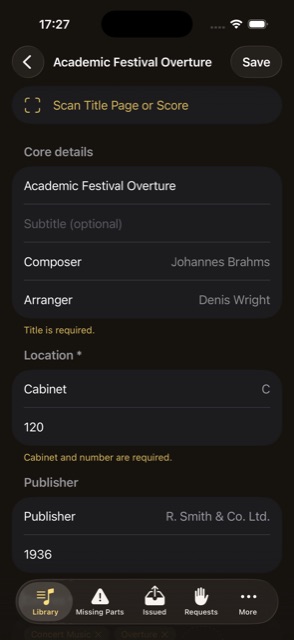
- Scan Title Page or Score — scan or choose a file and BandQM will attempt to read the title, composer, and arranger straight off it and pre-fill the form; review the results, since detection can guess wrong. The scanned page can also be attached as the piece's score in the same step.
- Title — required.
- Subtitle.
- Composer / Arranger — single-select pickers with inline “add new” if the name isn't already on the reference list.
- Cabinet + Number — required; where the physical copy lives.
- Publisher.
- Year published.
- Genres — required, multi-select chips.
- Instrumentation Features — multi-select chips.
- Tags — multi-select chips.
- Notes.
- Delete piece — from the list (swipe) or the detail screen; removes the piece along with its missing-parts log, loan history, pending requests, and digital files. Confirmation required. Full access only
Digital Files — Scores & Parts
- Add via camera — scans a document with your camera (multiple pages are merged into a single PDF automatically). Full access only
- Add via Choose File — attach an existing PDF or image instead of scanning. Full access only
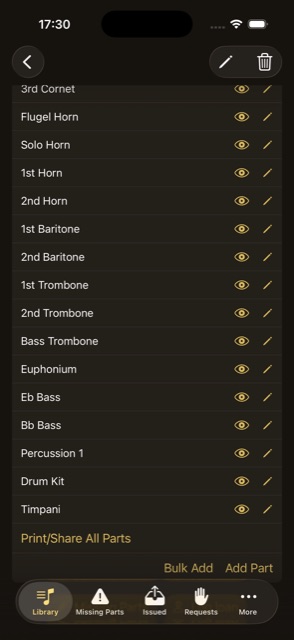
- Bulk Add — scan or attach several parts (or a whole score+parts folder) in one pass instead of one at a time; see Bulk Add below. Full access only
- Split into Parts — on an existing multi-part file (e.g. one “All Parts” PDF), split it into individually-named parts instead of replacing it outright; uses the same auto-detection as Bulk Add. Full access only
- Change / Remove — replace or delete a file already attached; Remove asks for confirmation. Full access only
- View — opens the file in the in-app PDF viewer; if Offline Availability is on and the file's already cached, it opens instantly with no network needed (see Settings → Offline Availability).
- Share (from the viewer) — Print, Save to Files, or AirDrop the file.
- Print/Share All Parts — merges the score and every individual part into a single PDF and sends it to one AirPrint job.
Bulk Add — Scanning Multiple Parts at Once
Reached from Digital Files → Bulk Add, or Change → Split into Parts on an existing multi-part file.
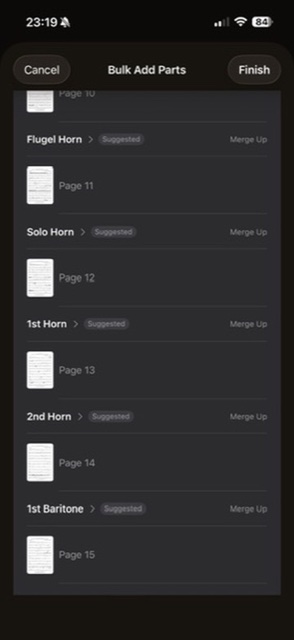
- Scan with Camera or Choose File — scan a whole folder of parts (or a combined score+parts file) in one or more bursts; the scanner can only hold so many pages at once, so a long batch may need “Scan More” to pick up where it left off.
- Auto-detected part names — BandQM reads each page's header/title area and groups pages into parts automatically, guessing a name for each (e.g. “1st Cornet”). It also detects and separates out a full score if one's included in the same batch.
- “Suggested” tag — marks a part name that was auto-detected and not yet confirmed; tap it to accept or correct the name before finishing, since detection can guess wrong.
- Merge Up — join a page onto the part group above it, for a page that was split off incorrectly.
- Tap a page thumbnail — view that page full-screen to check it before finishing.
- Finish — uploads every part; if any part names are still unconfirmed, you're asked to confirm you want to finish anyway or go back and review them first.
Missing Parts
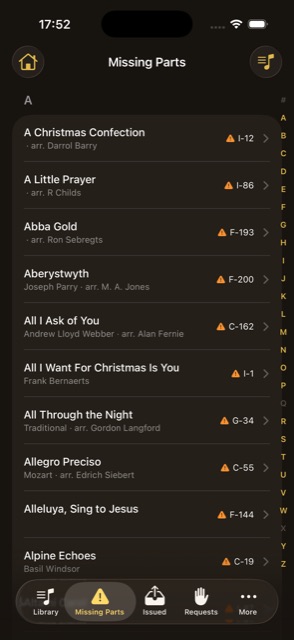
- Live list — every piece currently flagged with one or more missing parts, grouped alphabetically with the same A–Z index as the main Library list.
- Read-only list — there's no action here; tap through to a piece's own detail screen to add, resolve, or clear its missing parts.
Issued Pieces
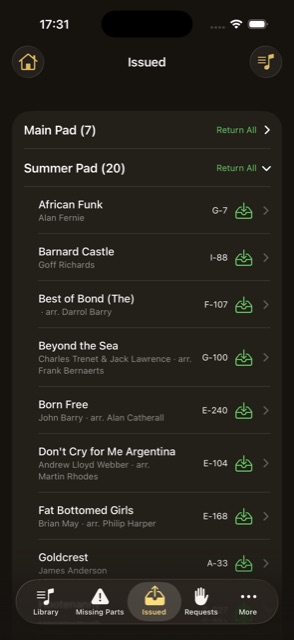
- Grouped by Pad/Setlist — pieces currently out are grouped by which Pad/Setlist they're assigned to, or under “Unassigned” if issued without one; each group is collapsible.
- Check In — return a single piece, per row. Full access only
- Return All — return every piece in a group at once, with a confirmation. Full access only
Piece Requests
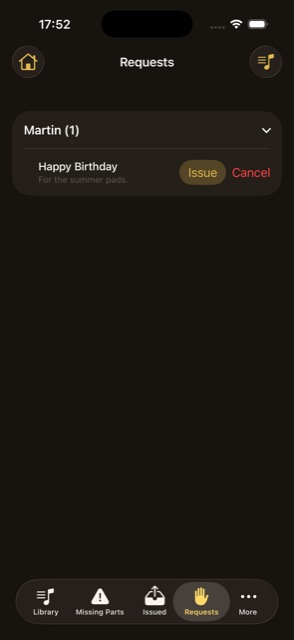
- Pending requests — grouped by requester, collapsible.
- Request This Piece — from a piece's detail screen; opens a sheet for optional notes, and shows the organisation's expected turnaround (“up to N hours”), then confirms once submitted. Music Director
- Issue — fulfils a pending request, marking the piece issued and opening the same Pad/Setlist picker as marking a piece Issued from its detail screen. Full access only
- Cancel — withdraw your own pending request; only visible to the person who made it.
Loans
A loan is recorded for the whole piece — there's currently no option in this form to log specific individual parts as separately borrowed.
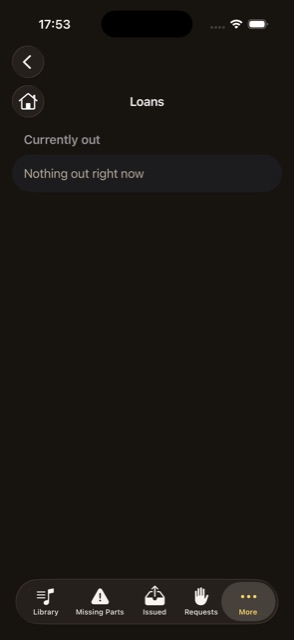
- Overdue section — loans past their due date, shown with the date in red.
- Currently Out section — every other active loan.
- Tap a piece title — opens that piece's detail screen.
- Tap a borrower's name — opens their Member profile.
- Pull to refresh.
- Log Loan — from a piece's detail screen: pick a Member (or type a free-text borrower name), a Date Out, and an optional Due Date. Full access only
Lists (Reference Data)
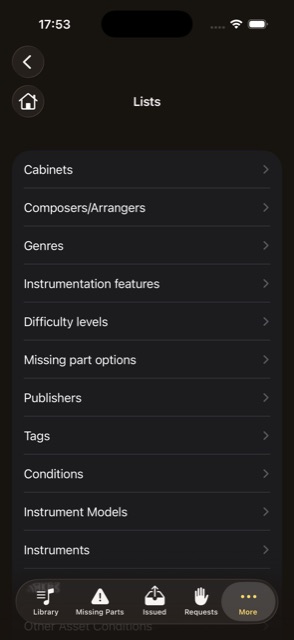
- What this is — the dropdown/reference values used throughout Library forms: Cabinets, Composers/Arrangers, Genres, Instrumentation Features, Pads/Setlists, Parts, Publishers, and Tags.
- Search, within a list.
- Add — add a new entry to a list by name. Full access only
- Swipe to delete an entry. Full access only
- Import from Spreadsheet — bulk-add entries from a single-column .xlsx file, with a preview of new vs. already-existing vs. blank rows before confirming. Full access only
- Clear List — delete every entry in the list at once, with a confirmation showing the count. Full access only
- Build From Existing Pieces — Tags list only: scans every piece's tags and populates/normalises the Tags list from what's actually in use. Admin only
Importing Pieces from a Spreadsheet
Reached from Settings → Import → Import Library.
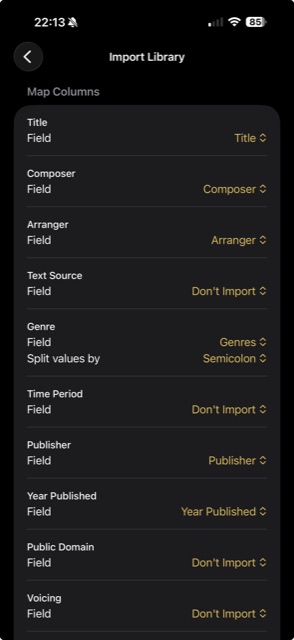
- Pick a .xlsx file to import from.
- Map columns — match each spreadsheet column to a Piece field; fields like Genre or Tags can be split on commas or semicolons to import multiple values from one cell.
- Cabinet — optionally pick one fixed cabinet for the whole import, or map a column instead.
- Attach scores — optionally point at a folder of PDF files, matched to rows by an exact filename match against a “Score Filename” column.
- Preview — shows counts of rows that will import, rows that will be skipped (and why), new reference-list entries that will be created, and how many scores matched.
- Confirm — runs the import with a progress bar, then shows a result summary (pieces imported, rows skipped with reasons, reference entries created, scores attached or failed).