Settings
Reached via the gear icon on the Home screen. Sections appear only if they're relevant to your role.
Organisation Settings
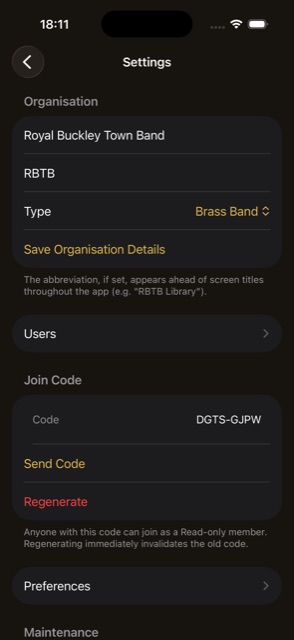
- Name, Header Abbreviation, Ensemble Type — editable, with Save. The abbreviation appears ahead of screen titles throughout the app (e.g. “RBTB Library”). Admin only
- Everyone else sees Name and Type as read-only display text.
Users & Permissions
Admin only.
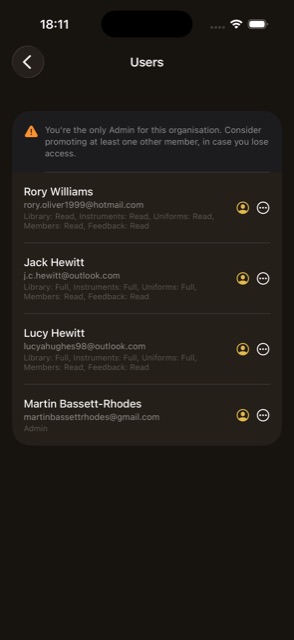
- Roster of app accounts (distinct from the Members roster) with an access summary per user.
- Sole-Admin warning banner — shown if you're currently the organisation's only Admin.
- Edit Permissions — Admin toggle (disabled on your own row if you're the sole Admin), per-module access level (None / Read / Full) for Library, Instruments, Uniforms, Members, and Feedback, and a separate “Can request pieces (Music Director)” toggle.
- Quick Presets — one-tap permission bundles for common roles: Librarian, Instruments Store, Uniform Store, Music Director.
- Deactivate / Reactivate a user — not available on your own row.
- Delete Membership — remove a user from the organisation entirely; not available on your own row, confirmation required.
- Shortcut to a user's linked roster profile, where one exists.
Subscription
Admin only. Lets an already-subscribed organisation's Admin check status or restore purchases without being blocked — the actual gate for an organisation that isn't subscribed is the Paywall screen (see Getting Started → Subscribing to BandQM).
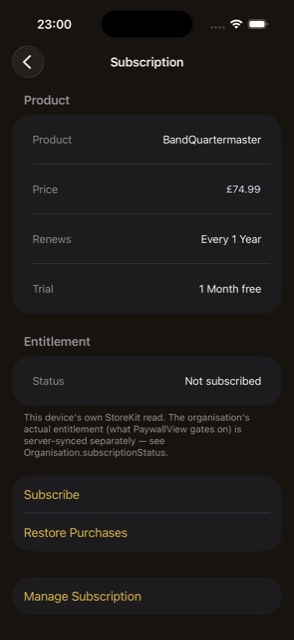
- Product & price — the subscription's price, renewal period, and any free-trial length.
- Entitlement status — Not subscribed, Trial, Active, or Expired, with the relevant date.
- Subscribe — starts Apple's in-app purchase flow.
- Restore Purchases — re-checks App Store entitlement, e.g. after a reinstall.
- Manage Subscription — opens Apple's own subscription-management sheet to change plan, cancel, or view billing history.
Join Code
Admin only.
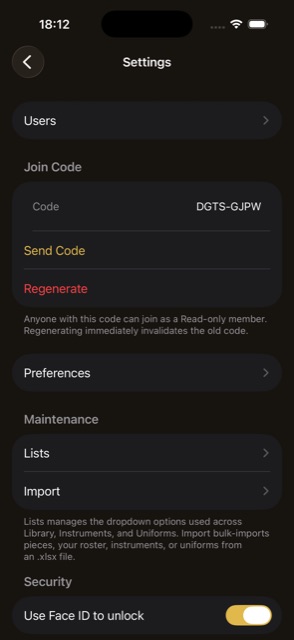
- Current code — displayed for reference.
- Send Code — opens the share sheet with a join link and the code text, formatted so iOS can suggest it as a one-time code.
- Regenerate — immediately invalidates the old code and issues a new one; confirmation required as this is not reversible.
Preferences
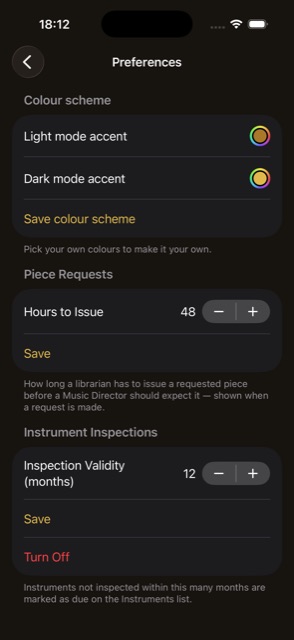
- Colour Scheme — Light and Dark accent colour pickers, Save, and “Reset to default” once customised. Admin only
- Piece Requests → Hours to Issue — a numeric field/stepper (1–336 hours) setting the SLA shown to requesters when they submit a request. Admin or Library Full access
- Instrument Inspections → Inspection Validity (months) — a numeric field/stepper (1–60 months) setting how often instruments need re-inspecting; Turn Off clears the term and stops overdue tracking. Admin or Instruments Full access
Lists & Import
Two shortcuts under a “Maintenance” header: Lists opens the same reference-list screens described under each module above; Import opens the Import Home hub with links to Import Library / Import Members / Import Instruments / Import Uniforms, each gated to that module's own edit permission. Visible to Admin or to anyone with Full access to Library, Instruments, or Uniforms.
Security
- “Use Face ID to unlock” toggle — only shown on devices that support biometrics.
Offline Availability
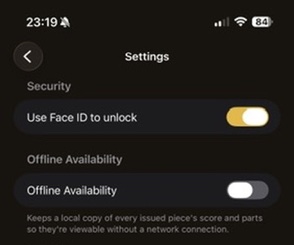
- “Offline Availability” toggle — off by default. When on, keeps a local copy of every currently-issued piece's score and parts so they're viewable with no network connection, refreshed automatically in the background.
- Most editing actions across the app require an internet connection while this is off or the device is offline; marking a piece Issued/Returned, bulk check-in, and adding/removing a missing part still work offline regardless.
Account
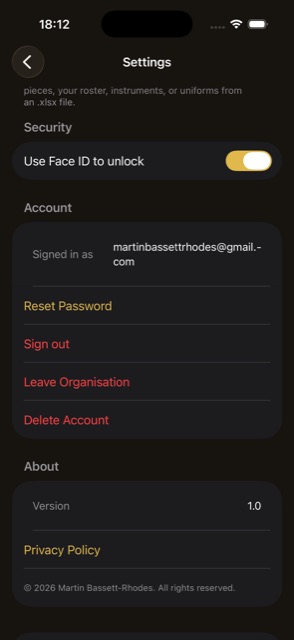
- Shows your signed-in email.
- Reset Password — sends a password-reset email.
- Sign out.
- Leave Organisation — self-service departure; blocked if you're the sole Admin or still hold outstanding gear. Confirmation required.
- Delete Account — opens a confirmation screen (see below).
Deleting Your Account
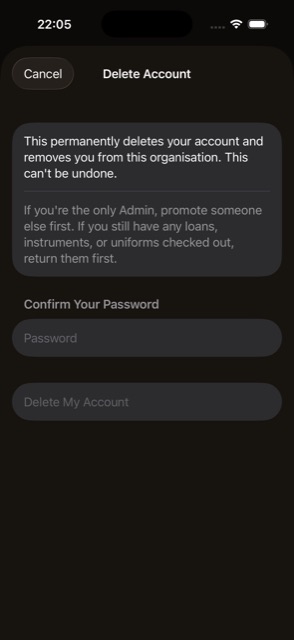
- Re-enter your password to confirm — required by Apple's self-service account-deletion guideline.
- Warning to promote another Admin, or return any outstanding gear, before deleting.
- Delete My Account — permanent, destructive action.
About
- App version number.
- Privacy Policy link.
- Copyright line.
Exporting & Deleting Your Organisation
Admin only.
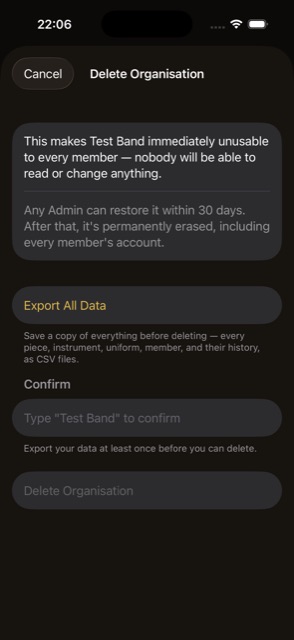
- Explains that a deleted organisation is recoverable for 30 days before permanent deletion.
- Export All Data (Again) — downloads CSV files via the share sheet; must be run at least once before the delete option becomes available.
- Type the organisation's exact name to confirm.
- Delete Organisation — destructive, with a confirmation dialog. Deliberately does not sign you out.
If Your Organisation Is Deleted
Shown to every member of an organisation once an Admin has marked it for deletion.
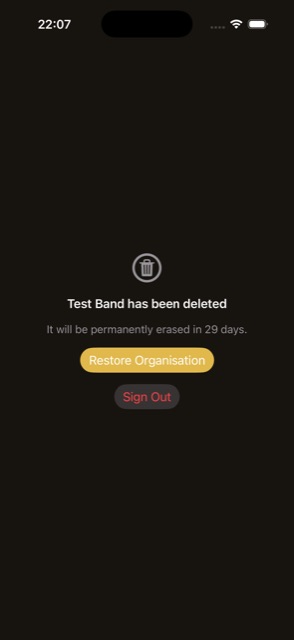
- Days-remaining countdown until permanent deletion.
- Restore Organisation. Admin only
- Everyone else sees a “contact an admin” message instead.
- Sign Out — always available.