Instruments Module
The Instruments module tracks every instrument the organisation owns (or a member owns personally but registers for tracking): its type, make, model, serial number, condition, and who it's currently assigned to, plus a history of condition inspections.
Browsing & Searching Instruments
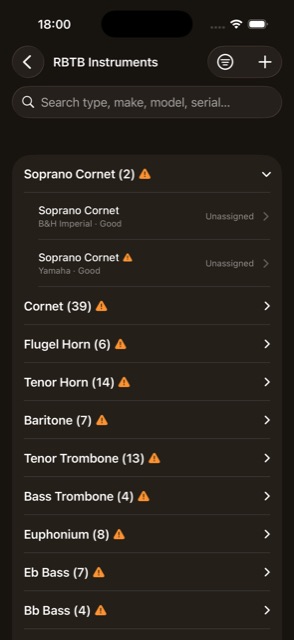
- Search — by type, make, model, or serial number.
- Grouped by instrument type — in standard band score order, collapsible; a group is flagged with a warning icon if any instrument inside it is overdue for inspection.
- Filter sheet — Overdue for Inspection only, Personal Instruments Only, or by Condition. Clear Filters resets everything.
- + button — add a new instrument. Full access only
- Swipe to delete. Full access only
- Tap a row — Read-only members see the assigned member's profile directly; editors go into the full instrument form.
Adding & Editing an Instrument
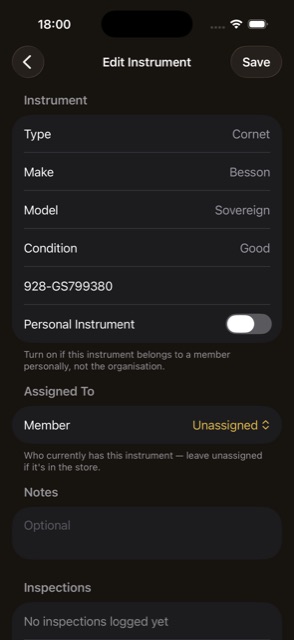
- Type, Make, Condition — pickers with inline “add new.” Model is disabled until a Make is chosen, since models are scoped to a make.
- Serial Number — optional, with a camera-scan button to read it directly off a nameplate (hidden on devices/simulators that don't support it).
- Personal Instrument toggle — marks the instrument as belonging to a member rather than the organisation.
- Assigned To — a member picker, plus a “View [Name]'s Profile” shortcut.
- Notes.
- Inspections section (existing instruments only) — a reverse-chronological log of past condition checks; see below.
Logging Inspections
- Inspection history — reverse-chronological list on the instrument's form.
- Swipe to delete a past inspection entry, with confirmation. Full access only
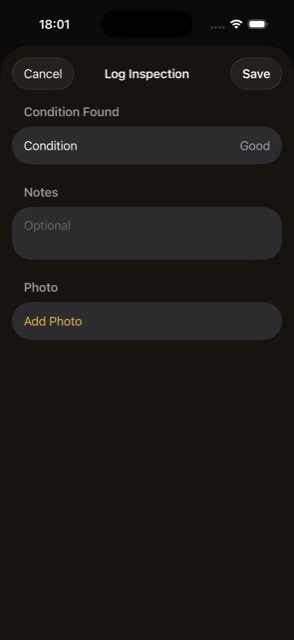
- Log Inspection — record Condition Found, optional Notes, and an optional photo (camera or photo library), then Save. Full access only
- Due-date footer — shows “Overdue since…”, “Next inspection due…”, or “Never inspected,” based on the organisation's Inspection Validity term set in Preferences.
Instrument Reference Lists
- Reached the same way as Library's Lists tab, from Settings → Lists: Conditions, Instrument Models (with a Make picker), Instruments (types), and Makes.
- Instrument Models has its own Add sheet that requires choosing a Make first, since models belong to a make.
- Same Add / swipe-to-delete / Import from Spreadsheet / Clear List actions as any other reference list. Full access only
Importing Instruments from a Spreadsheet
Reached from Settings → Import → Import Instruments.
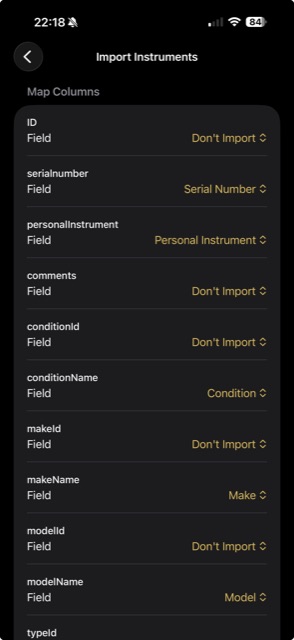
- Pick a .xlsx file, then map columns to Type, Make, Model, Condition, Serial Number, and other instrument fields.
- Preview shows new reference-list entries (e.g. new makes/models) that will be created, then imports on confirm with a progress bar and result summary.