Members Module
The Members module is the band's roster: names, contact details, and — for those who also have an app account — a link between their roster entry and their sign-in. It's also where all the equipment currently signed out to someone is visible and managed in one place.
Browsing & Searching Members
Note: adding and deleting members is governed by Library edit access, not a separate Members-specific edit permission, even though Members has its own visibility tier.
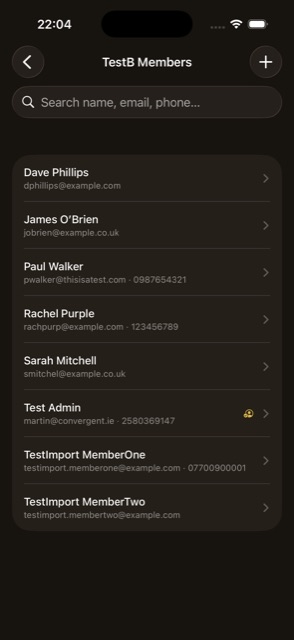
- Search — by name, email, or phone.
- Sorted alphabetically by full name (no A–Z index strip — rosters are assumed short enough not to need one).
- + button — add a new member. Requires Library Full access
- Swipe to delete. Requires Library Full access
Adding & Editing a Member
Assigning or unassigning Instruments/Other Assets requires Instruments Full access; assigning or unassigning Uniforms requires Uniforms Full access — separately from the Library access that gates reaching this form at all.
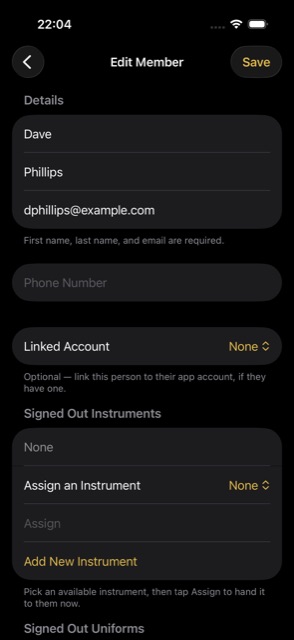
- First Name, Last Name, Email — required. Phone Number — optional.
- Linked Account — link this roster entry to an app user's sign-in.
- View Permissions — shortcut to that user's Edit Permissions sheet. Admin only
- Remove from Organisation — removes the linked user's account from this org; disabled while they still hold any outstanding gear. Admin only
- Assign gear at creation — when adding a brand-new member, optional pickers let you immediately assign an Instrument, Uniform, or Other Asset (with an “Add New” shortcut for each), so a new member can walk out fully equipped.
- Signed Out sections (existing members) — separate lists of Instruments, Uniforms, and Other Assets currently assigned to this member, each with swipe-to-unassign/return and an inline Assign picker + Assign button + Add New shortcut.
- Library Loans section — a read-only list of this member's active loans; only populated if they have a linked account.
- Return All Gear — bulk-returns every instrument, uniform, other asset, and loan this member currently holds in a single action, with a confirmation listing the exact counts first.
Importing Members from a Spreadsheet
Reached from Settings → Import → Import Members.
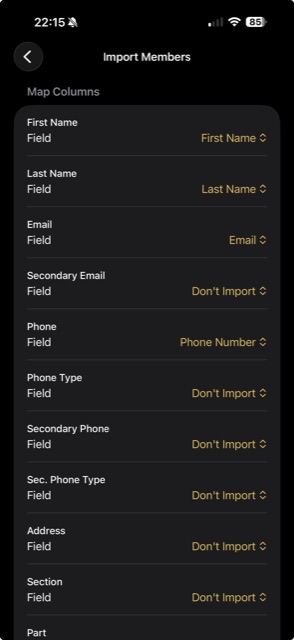
- Pick a .xlsx file, then map columns to First Name and Last Name (required), Email, and Phone.
- Preview — distinguishes rows that will create a new member from rows that match an existing member by email or name and will only fill in that member's currently-blank fields (existing data is never overwritten).
- Confirm, progress bar, result summary.